![New Founders Software-White.png]](https://help.intelligentbits.com/hs-fs/hubfs/New%20Founders%20Software-White.png?height=50&name=New%20Founders%20Software-White.png)
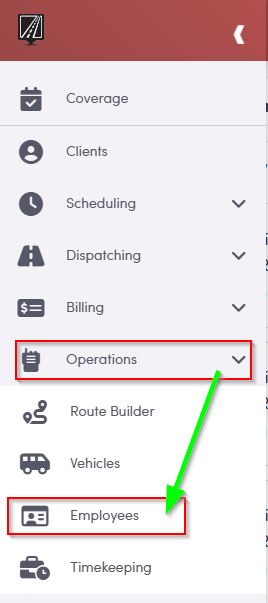
Navigate to Operations, then select Employees.
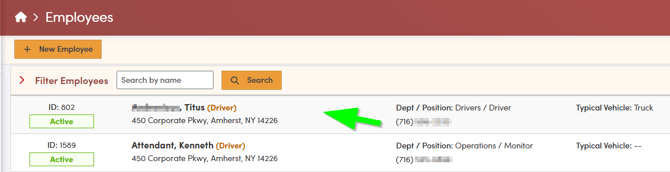
On the Employee Screen, select the employee you are looking to add a typical vehicle to.
Note: Vehicle's need to be created to add a typical vehicle to an employee profile.
On the Employee Profile screen, locate the section labeled **Typical Vehicle** on the right side under **Driver Information**. Click this section to open a list of available vehicles, then select the appropriate vehicle to assign it as the employee’s typical vehicle.
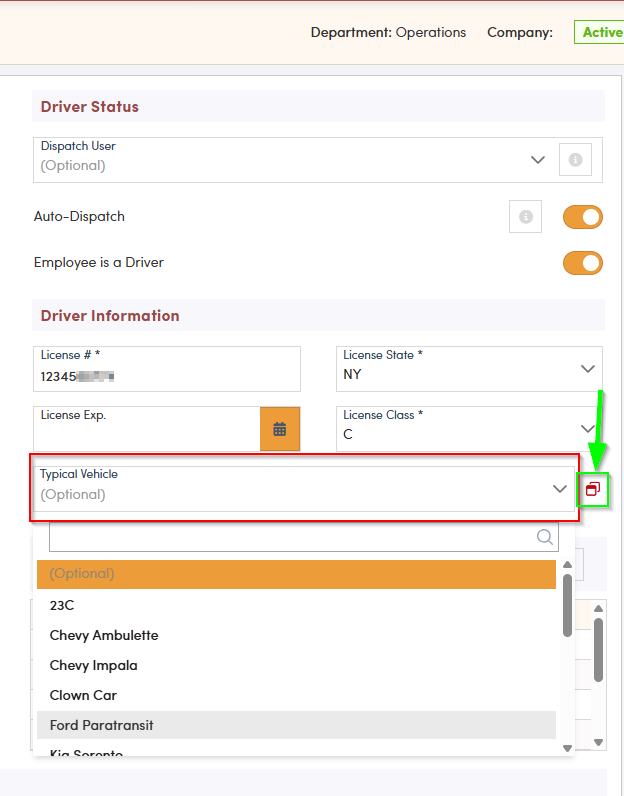
Tip: If you need to adjust a vehicle or confirm that the selected vehicle is correct, click the double-box icon to open the vehicle profile for review and any necessary updates.
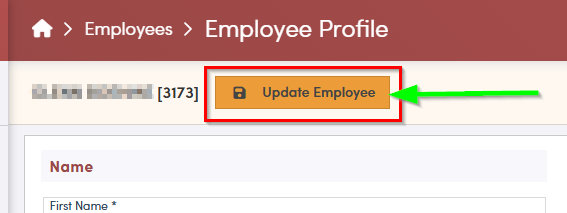
After you select the vehicle, click **Update Employee** at the top of the screen. This step is required to save the vehicle to the Employee Profile.