![New Founders Software-White.png]](https://help.intelligentbits.com/hs-fs/hubfs/New%20Founders%20Software-White.png?height=50&name=New%20Founders%20Software-White.png)
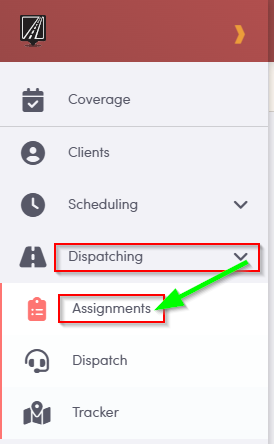
Navigate to the Dispatching tab, then select the Assignments icon.
In the Assignment Screen you will find there are many options available to sort, view and create assignments.
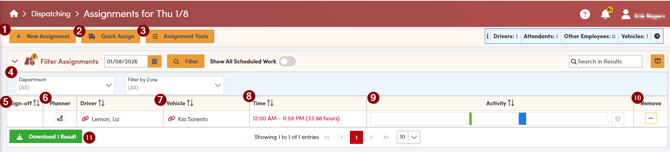
- New Assignment allows you to create a brand-new assignment from this screen.
- Quick Assign is used to efficiently assist in assigning existing trips to available vehicles or drivers. For more information about quick assign click here.
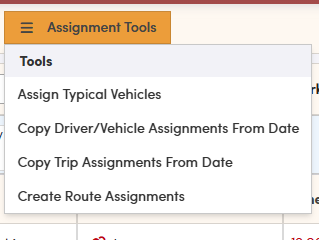
- Assignment Tools is where typical vehicle, copying from date and route assignments can be done.
- Filter Assignments allows you to narrow down the list of assignments so you can display only the trips that meet the specific criteria you are interested in viewing.
- Sign-off indicates whether the driver has confirmed and signed off on the vehicle checklists for that day.
- Assignment Planner is used to organize and structure each driver’s day, ensuring their trips are scheduled in an efficient and manageable order.
- Driver and Vehicle displays the assigned driver and vehicle pair. Selecting the chain icon next to either the driver or the vehicle opens the detailed profile for that specific driver or vehicle, allowing you to review or update their information.
- Time displays the scheduled start and end times for the assignment, helping you verify the full duration of the assignment at a glance.
- Activity provides a visual overview of how busy an assignment is. Green bars represent completed trips, blue bars indicate trips that are still pending, and red bars identify trips that have been cancelled or marked as no-shows.
- Remove allows you to delete an existing assignment from the schedule when it is no longer needed.
- Download allows you to export all of the information displayed on this screen into an Excel-compatible CSV file for reporting or further analysis.