![New Founders Software-White.png]](https://help.intelligentbits.com/hs-fs/hubfs/New%20Founders%20Software-White.png?height=50&name=New%20Founders%20Software-White.png)
Navigate to the Reporting tab, then select Scheduling.
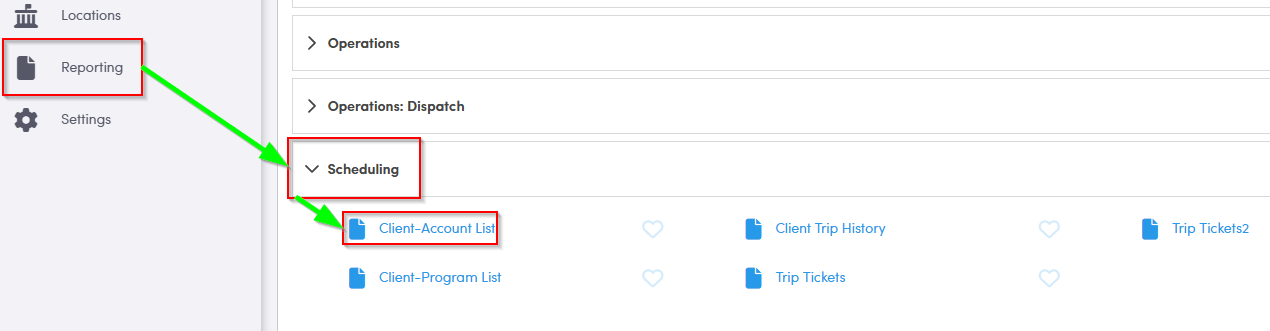
1. Double-click Client-Account List.
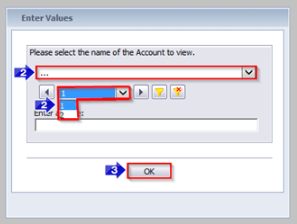
2. Choose the Account you would like to view from the drop-down menu. You can toggle between pages using the numbered drop down below.
3. Click OK to generate the report.
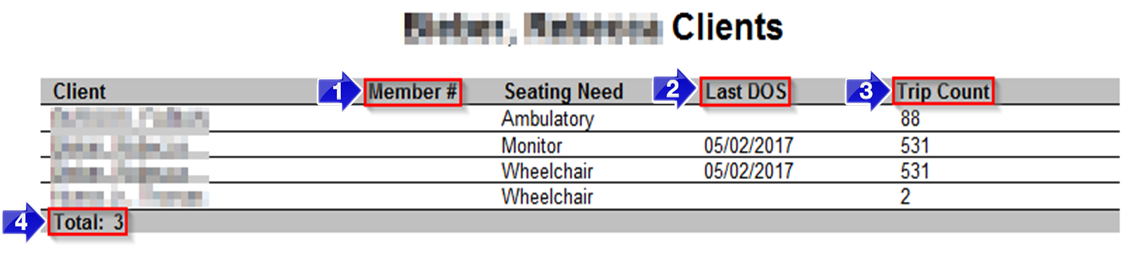
1. The Member # column will contain a member # if there is one on the Client Profile for that account. For example, the Medicaid CIN would display in this column if it was saved on the Client Profile.
2. The Last DOS will show the date of the client’s last trip under this account.
3. The Trip Count includes every leg that was ever created for this client, whether the legs occurred with this account or another account. The Trip Count includes both cancelled and completed legs.
4. The Total contains the total amount of clients within this account.
Key Terms: Account, Active, Client, DOS, Member #, Report, Total, Trip Count, ReportingFormHelp