![New Founders Software-White.png]](https://help.intelligentbits.com/hs-fs/hubfs/New%20Founders%20Software-White.png?height=50&name=New%20Founders%20Software-White.png)
Navigate to the Reporting tab, then select Operations.
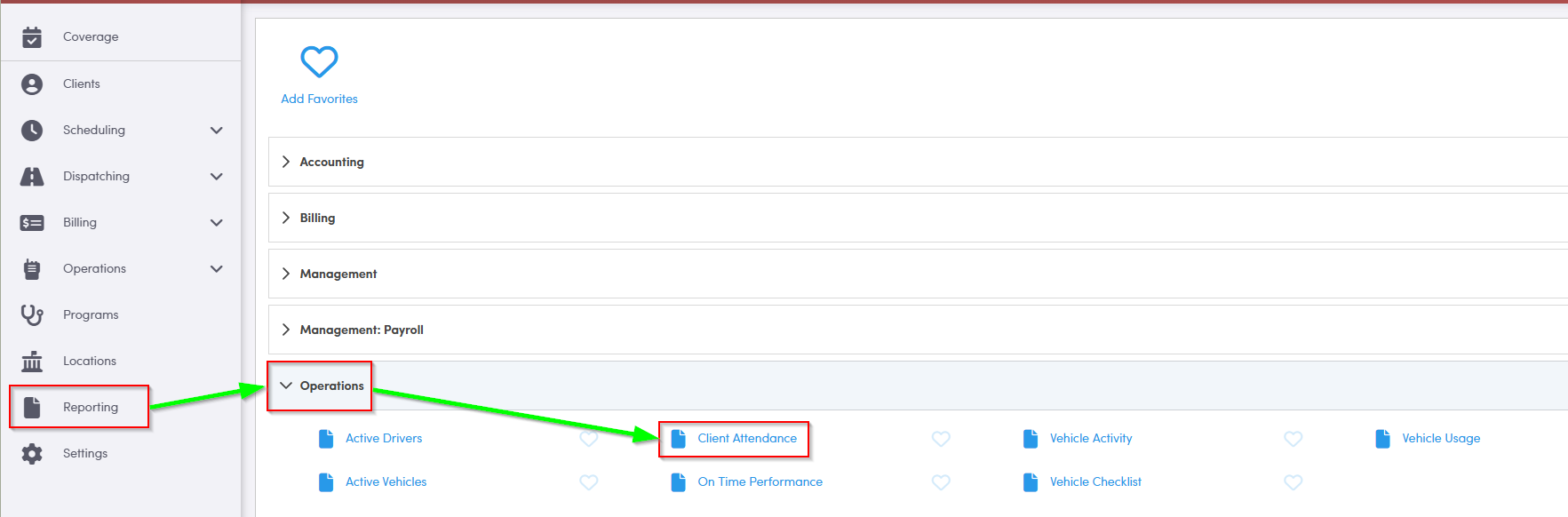
1. Double-click Client Attendance.
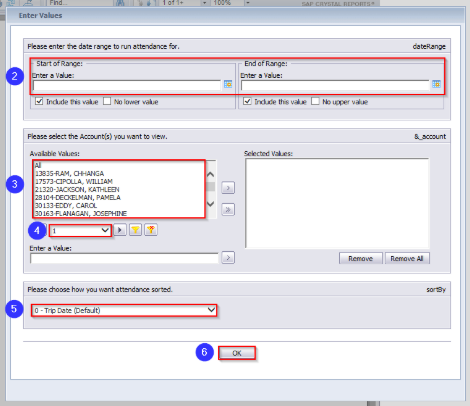
2. Click the calendar icons to select the date range you would like to view.
3. Double-click the account(s) you would like to view.
4. Select a page from the drop-down if you’d like to view more account options.
5. Decide whether you would like to sort by Trip Date, Client, Trip Purpose or Provider.
6. Click OK to generate the report.
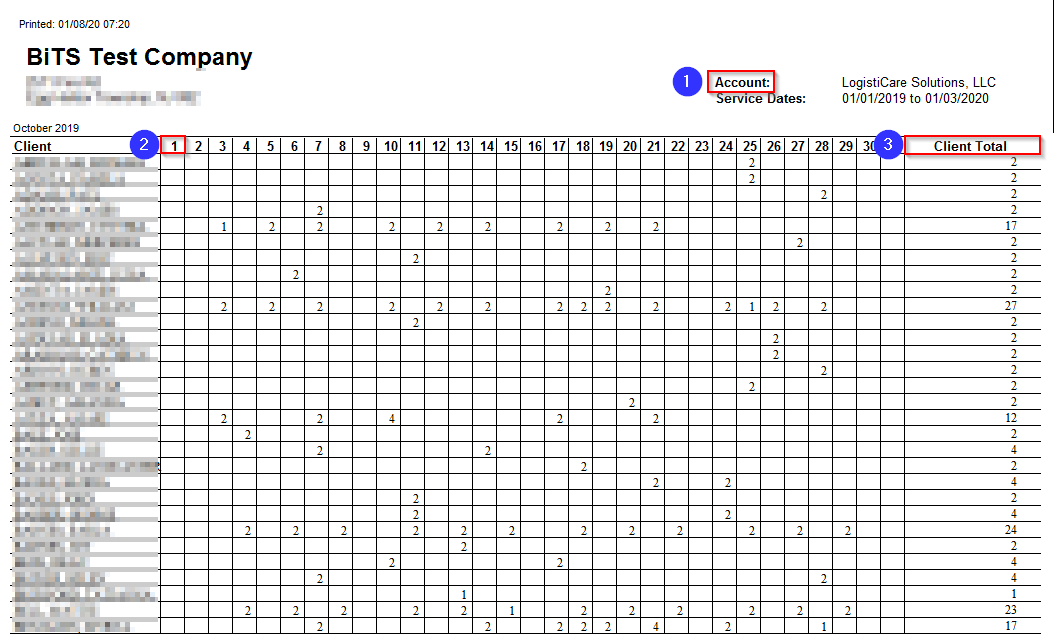
1. If you’ve selected all or multiple accounts, each page of this report will show a different Account.
2. There is a separate column on this report for each day of the month. The number in each column represents how many legs of a trip were completed for that client.
3. The Client Total column contains the total number of legs completed for a specific client in the date range specified.
Key Terms: Account, Attendance, Client, Completed, Provider, Purpose, ReportingFormHelp