![New Founders Software-White.png]](https://help.intelligentbits.com/hs-fs/hubfs/New%20Founders%20Software-White.png?height=50&name=New%20Founders%20Software-White.png)
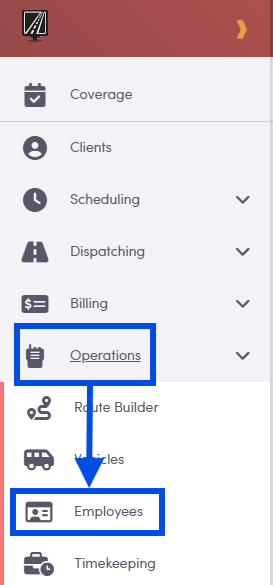
Navigate to the Operations tab, then select the Employees icon.
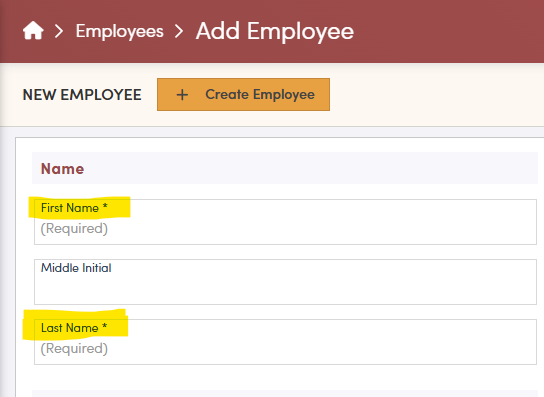
First and Last Name are required to create a Employee Profile.
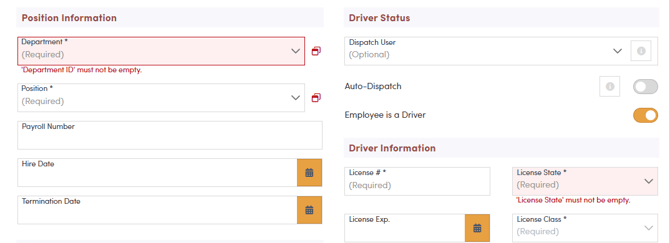
Select driver from the Department drop-down.
Select driver from the Position drop-down. Other optional HR fields are available, such as: DOB, Gender, Payroll #, SSN, Hire Date, and Term Date.
Enter the License # and select the State and Class from the drop-down. The Exp Date and Typical Vehicle are optional.
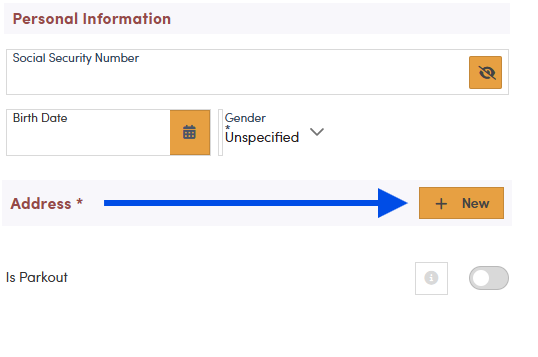
Enter the driver's Primary Address. If the Primary Address is different than the location where the driver starts their day, click the check box to Set Parkout Address.
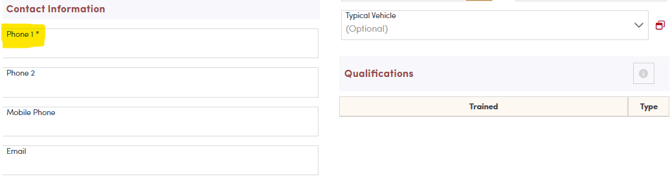
Note: A setting can be activated to prevent a driver from being assigned to trips they are not qualified for. Please contact BiTS Support via live chat, e-mail or phone if you're interested in having this setting activated.
Select +Create Employee to save the information.