![New Founders Software-White.png]](https://help.intelligentbits.com/hs-fs/hubfs/New%20Founders%20Software-White.png?height=50&name=New%20Founders%20Software-White.png)
Navigate to the SETTINGS category, then select Zones.

Method 1 (Postal Codes)
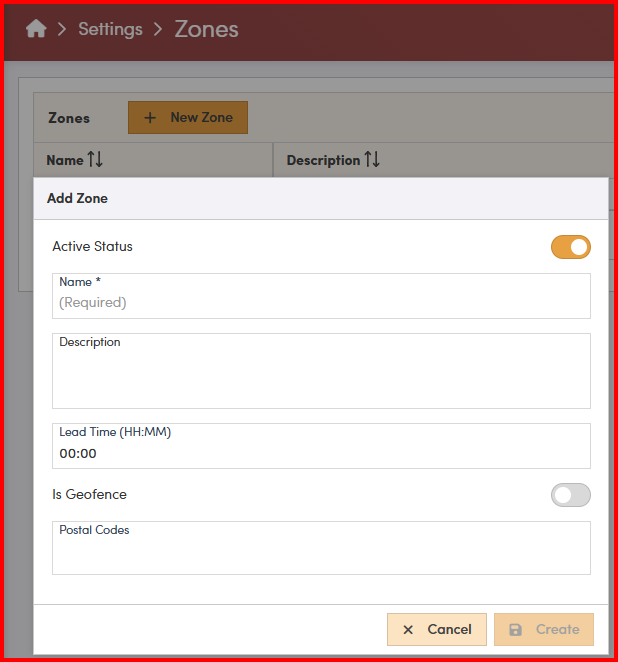
1. Select New Zone.
2. Enter a Name for the zone you're creating.
3. If you have auto dispatching, the Lead Time indicates how much earlier than the PU Time you would like a trip dispatched. For example, if a trip picks up at 15:00 and the Lead Time is 3:00, the trip will be auto-dispatched at 12:00.
Note: Please contact BiTS Support via phone, live chat or e-mail if you're interested in auto dispatching.
4. Enter the Postal Codes that are within this zone. If you have multiple Postal Codes, you can simply enter each postal code, followed by a comma. RoutingBox will separate these as individual Postal Codes when you save your changes.
5. Select Create to save your changes.
Method 2 (Geofence)

1. Select New Zone.
2. Enter a Name for the zone you're creating.
3. If you have auto dispatching, the Lead Time indicates how much earlier than the PU Time you would like a trip dispatched. For example, if a trip picks up at 15:00 and the Lead Time is 3:00, the trip will be auto-dispatched at 12:00.
Note: Please contact BiTS Support via phone, live chat or e-mail if you're interested in auto dispatching.
4. Enable the Is Geofence tab. This will open up a larger map with options for creating your desired Geofence.
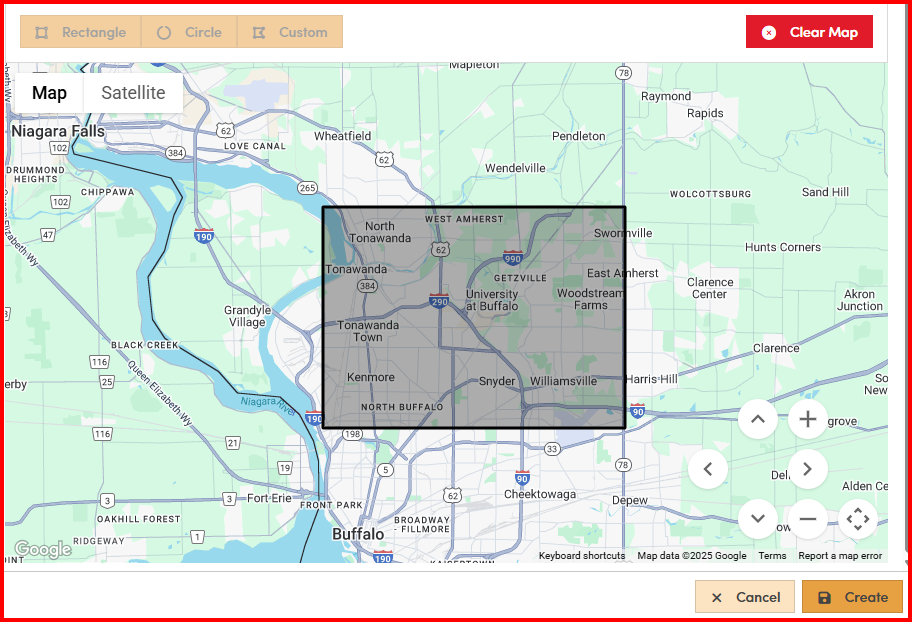
- The Rectangle option allows you to click and drag. When you unclick, a rectangle will be created around your desired zone.
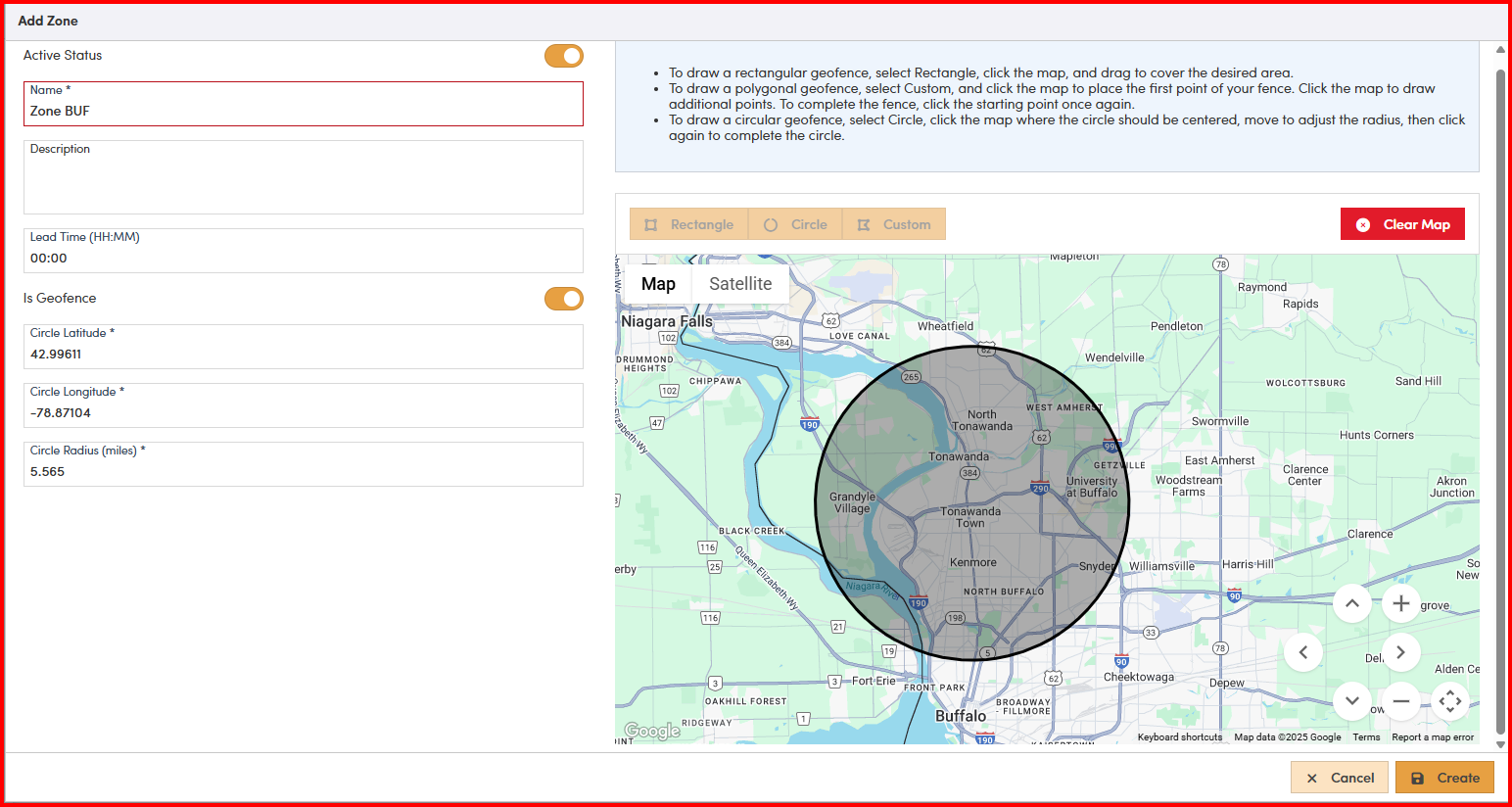
- The Circle option allows you to create a circular shape around a desired zone. This will also open additional fields of Circle Latitude, Circle Longitude, and Circle Radius (in Miles) to note the coordinates.
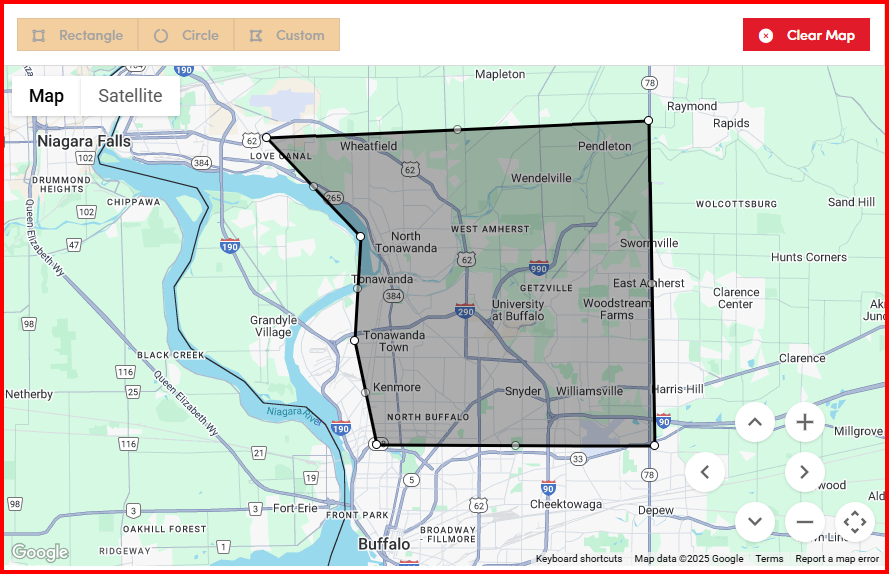
- The Custom option allows you to click on the map, then move the mouse to another location and click to create the visualized line. This allows you to make a customized polygon using straight lines around your desired zone.
5. Select Create to save your changes.