![New Founders Software-White.png]](https://help.intelligentbits.com/hs-fs/hubfs/New%20Founders%20Software-White.png?height=50&name=New%20Founders%20Software-White.png)
Navigate to the Reports tab, then select the Billing icon.
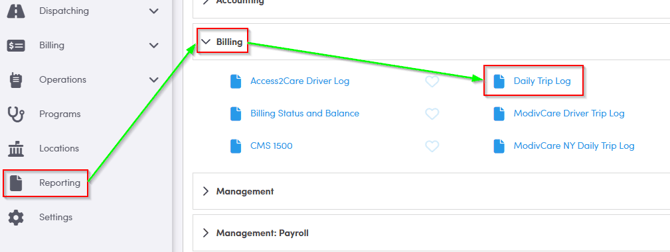
Double-click Daily Trip Log.
-
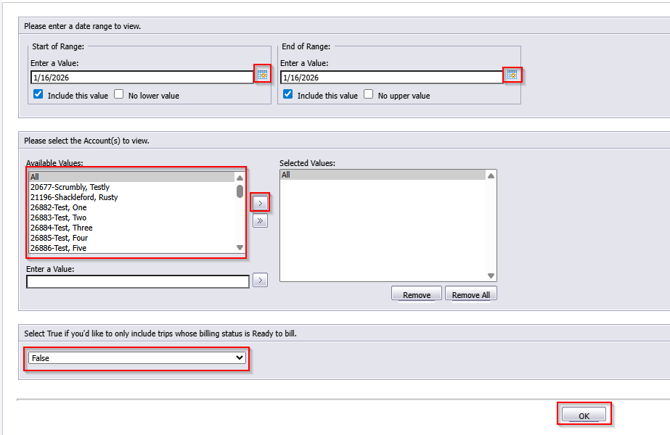
Click the calendar icon to select the beginning date.
-
Click the calendar icon to select the end date.
-
Select the account(s) you would like to view.
-
Select if you would only like to view trips with the billing status ready. By default, False is selected and trips with all billing statuses are displayed.
-
Click OK to generate the report.
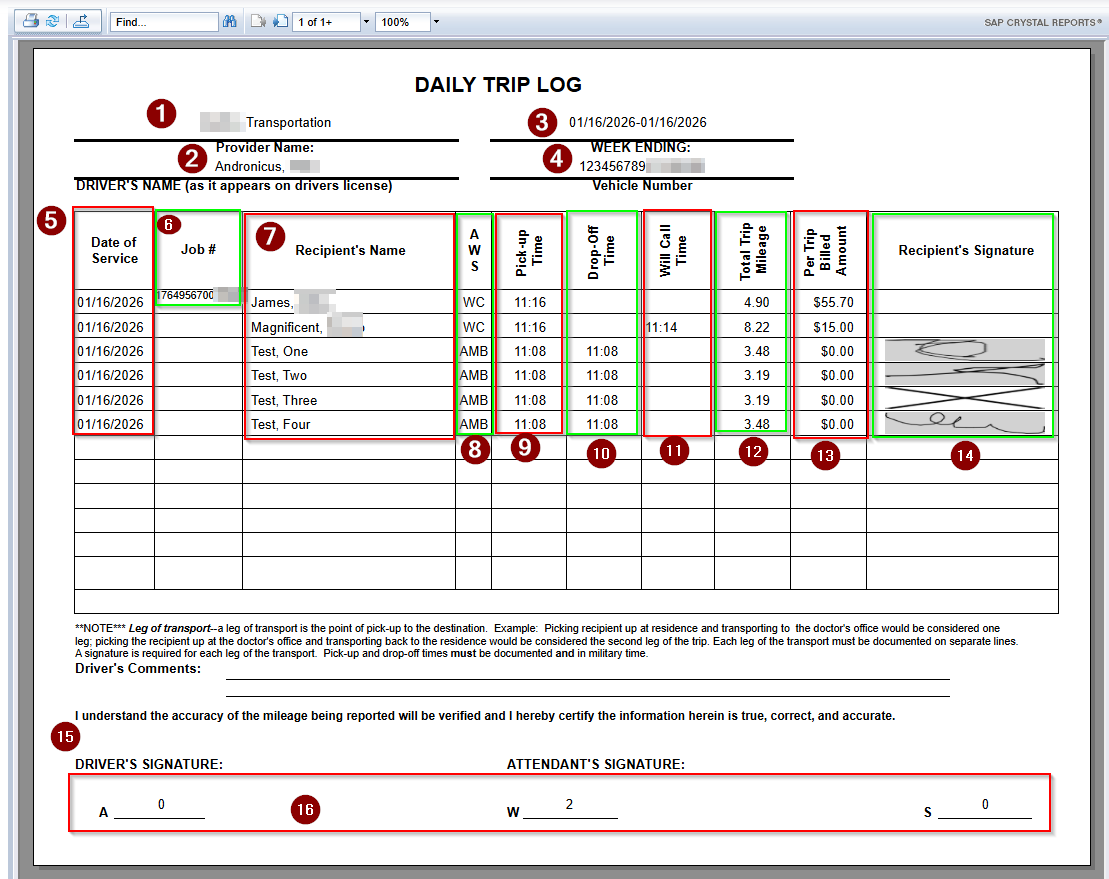
- Name Transportation Company name
- The driver's name
- Date range chosen for the report
- Vehicle VIN number of vehicle used
- Date of Service of the trip
- Job number if a trip comes thru an integration (trip ID)
- Recipient's Name is the name of the client transported
- AWS is the mode of transport: Ambulatory, Wheelchair or Stretcher
- Pickup Time for the trip
- Drop off time for the trip
- Will call time is time the trip was picked up
- Total trip mileage is the mileage calculated by RoutingBox
- PreTrip Billed amount is the amount that is determined by rates input into RoutingBox
- Recipient's signature is present if signatures are collected. If driver selects unable to sign an X will be present.
- Driver and Attendant Signature will be present if required for the trips.
- AWS breaks down the number of each type of mode of transport was done.