![New Founders Software-White.png]](https://help.intelligentbits.com/hs-fs/hubfs/New%20Founders%20Software-White.png?height=50&name=New%20Founders%20Software-White.png)
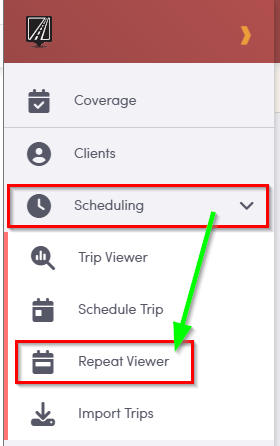
From the main menu, go to the Scheduling section, then click Repeat Viewer to access the tool for managing recurring schedules.
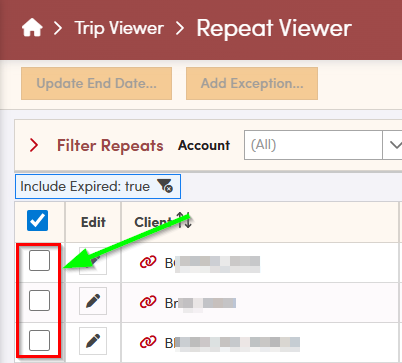
On the Repeat Viewer screen, choose one or more trips that you want to modify so you can apply your changes to all selected trips at once.
After you select one or more trips, the Update End Date and Add Exception buttons become active, allowing you to make changes to all selected trips selected.
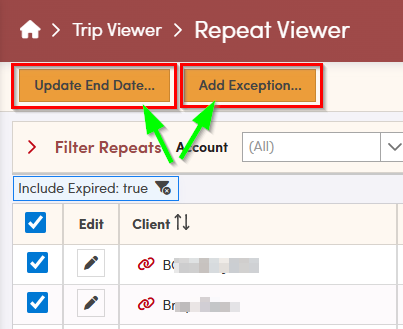
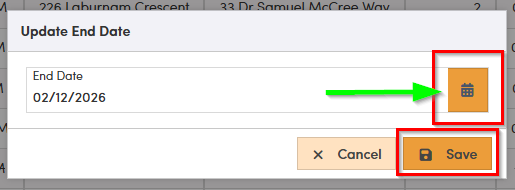
To update the end date for multiple repeat series, click the Update End Date button. In the window that appears, click the calendar icon and select the new end date. After selecting the date, click Save to apply the updated end date to all selected trips.
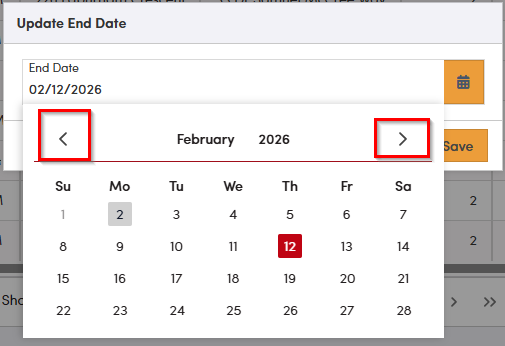
Note: In the calendar, today’s date is highlighted in gray, and the current end date for the series is highlighted in red. Use the left and right arrow buttons next to the month and year to move between months before selecting the new end date.
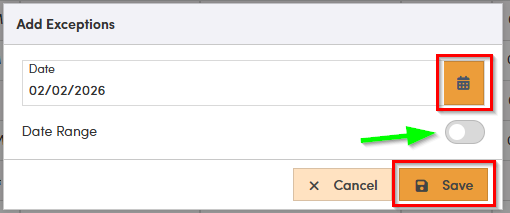
To add exceptions, click the Add Exceptions button. In the window that appears, use the calendar icon to choose the specific date you want to exclude from the schedule.
If you need to block off a span of time—such as a holiday break for school routes—click the Date Range button instead. Then select the start date and end date for the exception period.
When you are finished selecting your dates or date range, click Save to apply the exception to the selected trips.