![New Founders Software-White.png]](https://help.intelligentbits.com/hs-fs/hubfs/New%20Founders%20Software-White.png?height=50&name=New%20Founders%20Software-White.png)
Method 1 (Trip Viewer):
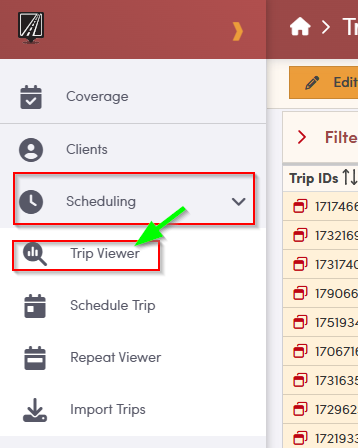
Navigate to the Scheduling tab in the left hand menu bar, then select the Trip Viewer.
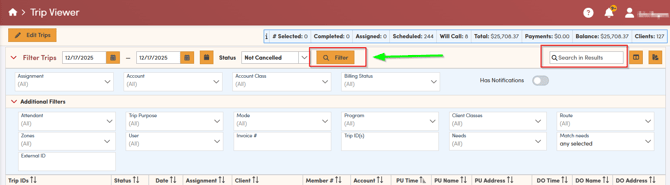
In the Trip Viewer screen, you can locate specific trips in several ways. You may apply filters to limit the results to trips that match certain criteria, type relevant keywords into the search bar, or scroll through the list of trips to review them manually. After you adjust any filters or enter a keyword, be sure to select **Filter** so the Trip Viewer updates to reflect your choices.
Note: When you search by keyword, the system looks for matches in both client names and addresses.
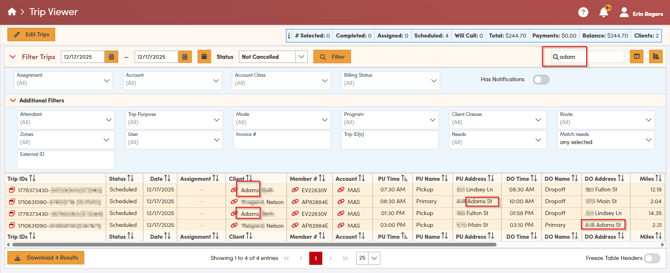
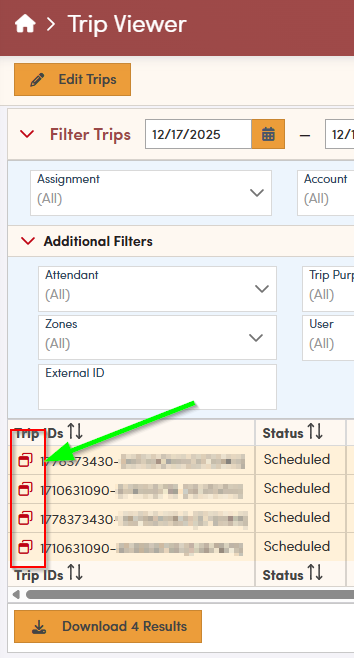
Once you find the trip you are looking for click on the 2 box icon next to the trip ID to open the trip.
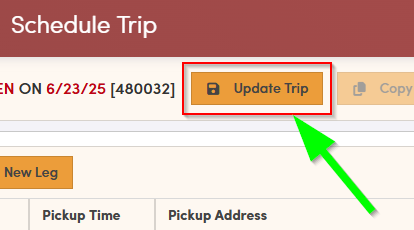
The trip details will open, and the leg you selected will be highlighted. You can now change the status of this highlighted leg. After you choose the appropriate status, be sure to click the **Update Trip** button to save your changes.
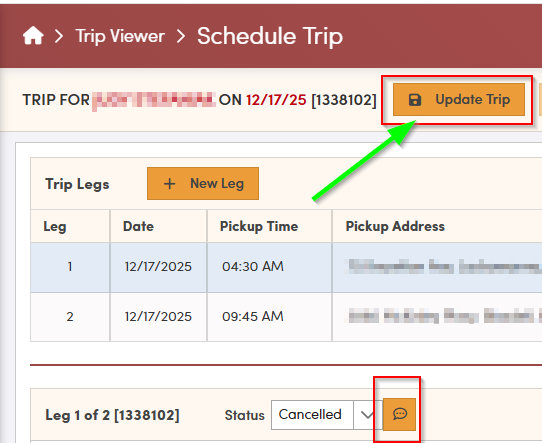
To document the reason for canceling a trip, select the speech bubble icon next to the status field and enter your notes.
Method 2 (Dispatch Screen):
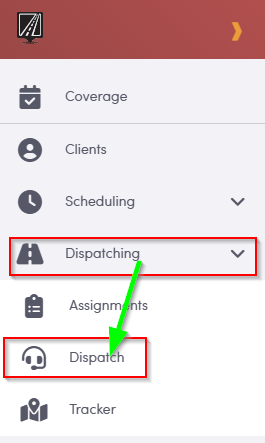
From the left-hand menu, first navigate to the **Dispatching** section, and then select **Dispatch** to open the Dispatch screen.
In the Dispatch screen, you can locate specific trips in several ways. You may apply filters to limit the results to trips that match certain criteria, type relevant keywords into the search bar, or scroll through the list of trips to review them manually. After you adjust any filters or enter a keyword, be sure to select **Filter** so the Dispatch Screen updates to reflect your choices.

Note: When you search by keyword, the system looks for matches in both client names and addresses.
Once you locate the trip you need, click the arrow next to the trip status under the assignment. If you do not see the status you need right away, scroll through the list until you find it. Then, click on the new status you want to apply to the trip.
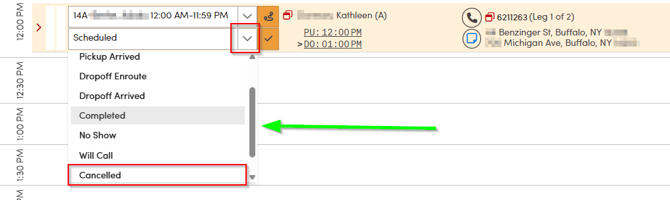
After you select the **Cancelled** status, the trip will be updated. The client’s name and the pickup/drop-off address will appear with a strikethrough, indicating the cancellation. If your status filter is set to anything other than **All**, the trip will no longer appear on the screen once its status is updated to **Cancelled**.

Method 3 (Repeat Trip):
If a repeat series needs to be ended/cancelled please follow the edit a repeating trip in RoutingBox web knowledge base article.
Method 4 (Client Profile):
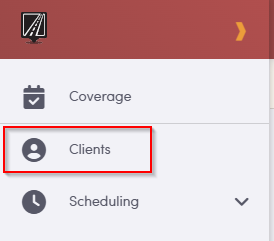
From the left-hand menu bar, navigate to the **Clients** tab.
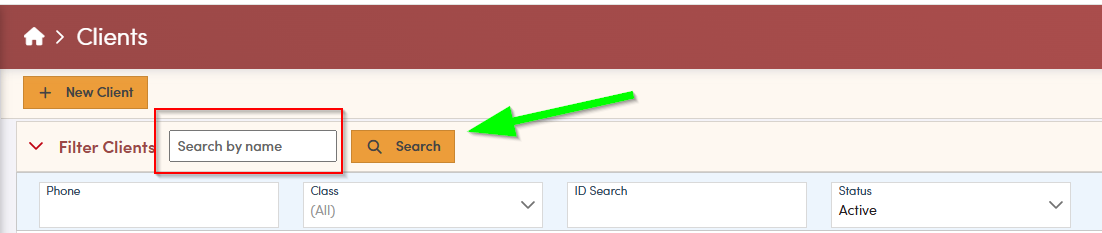
On the client screen, you can search for a client by entering their name in the search bar. To narrow your results, apply additional filters such as phone number, client class, or status. These filters help you quickly identify the correct profile. After selecting your filters, click **Search** to update and refine the client list.
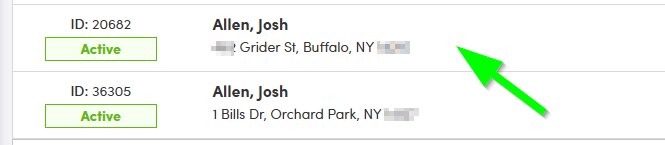
Once you identify the correct client in the results list, click anywhere on the row containing their name to open their profile.
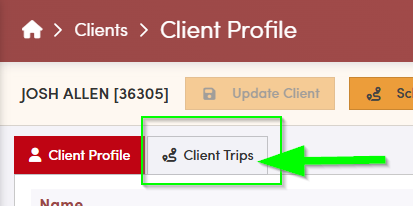
The client profile will open. Select client trips under the client's name to get to their past, present and future trips.
On the **Client Trips** screen, if you do not see the trip you are looking for, you may need to adjust the date range or the types of trips being displayed. Select the appropriate date range for the trips you want to review, and then click **Search** to refresh the list.
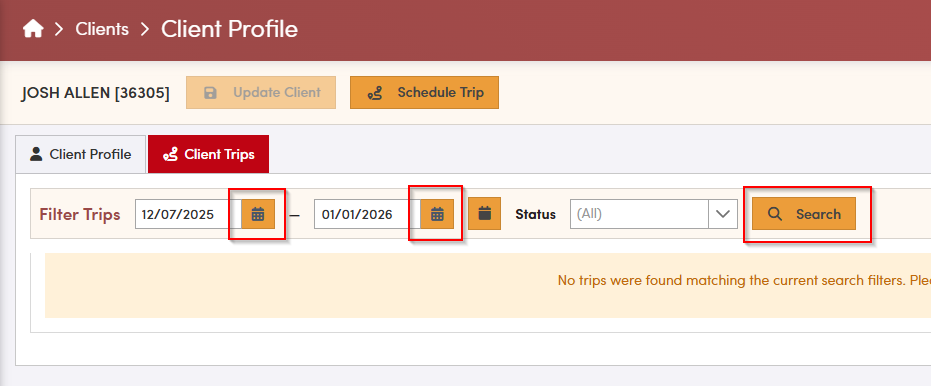
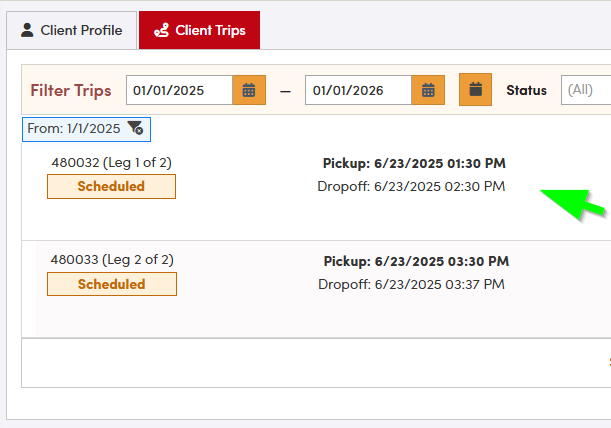
Once you have located the trip you are looking for click anywhere on the bar. Please note if the trip has 2 legs both will be present on the trip card.
On the highlighted leg of the trip, select the new status you want to apply. If the trip includes multiple legs, remember that each leg is managed independently. To keep the trip record accurate, update the status on every leg that needs to be changed.
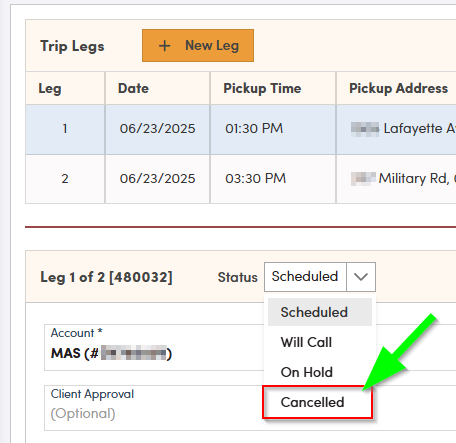
After selecting the desired status, click **Update Trip** to apply and save your changes to the trip record.