![New Founders Software-White.png]](https://help.intelligentbits.com/hs-fs/hubfs/New%20Founders%20Software-White.png?height=50&name=New%20Founders%20Software-White.png)
Method 1 - View Client Trips
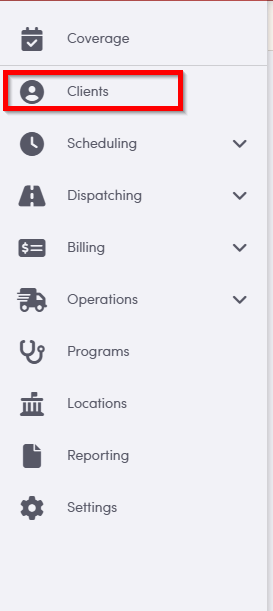
To view trips associated to a specific Client, first, navigate to the left-hand menu bar and select “Clients.”
On the Client screen, type the Client’s name into the Search by Name field and click Search to display their information.

You can also search for Clients using additional filters such as Phone Number, Class, ID, and Status. By default, the search will display Clients with an Active status; however, you can also view clients who are Inactive, On Hold, or All Clients by adjusting the Status filter options.
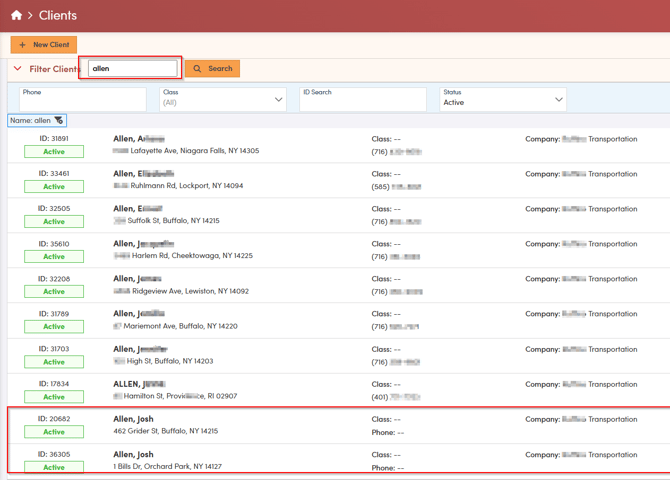
Clients may have the same name be mindful to check other identifying information.
Once you have found the correct Client in your search results, click on their name to open their Client card and review detailed information about them including trip history.
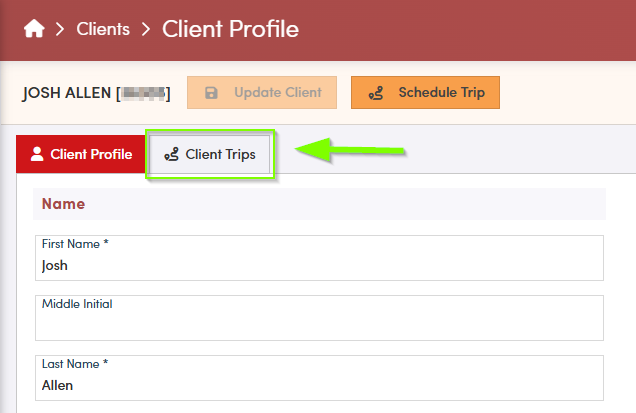
*The tab select will be highlighted RED*
From the Clients List once the correct Client has been identified you may also go directly to the Client Trips by clicking the Show Client Trips button.

To View the clients trip history select the Client Trips Tab.
Within the Client Trips tab, you can customize your view by selecting a specific date range and choosing the trip status relevant to your search. Once you have set these filters according to your needs, click the Search button to display a list of trips that match your selected criteria.
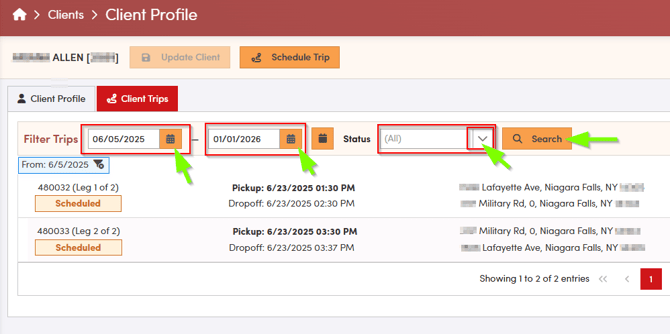
To select a specific trip from the displayed list, simply click anywhere on the row containing the trip details. This action will open the Trip Card, where you can view comprehensive information about that particular trip.
Method 2 - Trip Viewer and Dispatch
From the main menu on the left, open the Scheduling dropdown and choose "Trip Viewer" to access the Trip Viewer screen.
The Trip Viewer screen offers several tools to help you locate specific trips efficiently. You can search by date range, account, or account class, and make use of Additional Filters to further narrow your results based on your needs. For a quick way to find a particular trip, use the "Search in Results" bar located at the top right corner—this feature allows you to instantly filter the list by keywords, saving you time and streamlining your workflow.
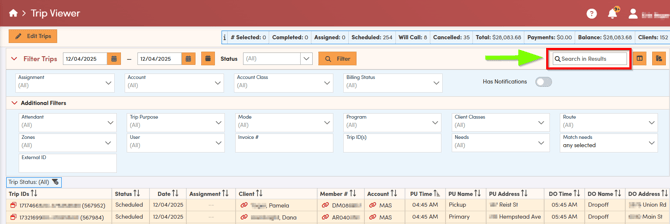
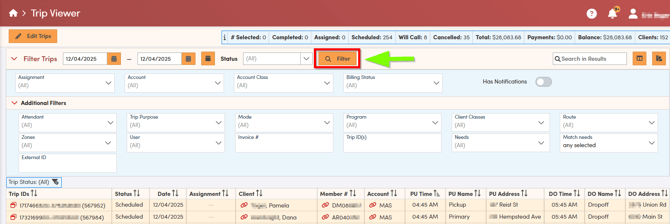
After selecting your search criteria or typing in the Search in Results bar select Filter to filter results. When using the search bar results may populate without selecting filter. The search bar can be used to search for names, addresses and trip ID's.
NOTE: To accurately identify the intended client, always verify additional details such as phone number, class, or client ID beyond just the name. This practice helps ensure you are selecting the correct client record.
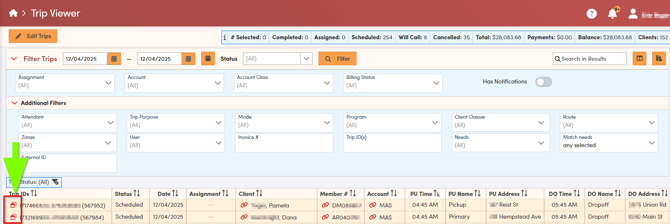
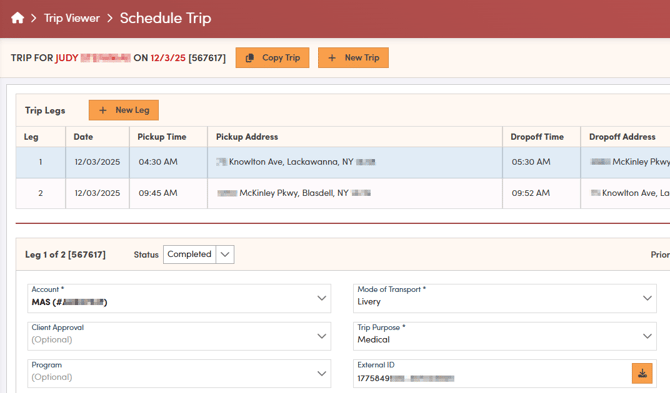
After you have located the trip you need, select the icon with two red boxes to open and review the trip details.
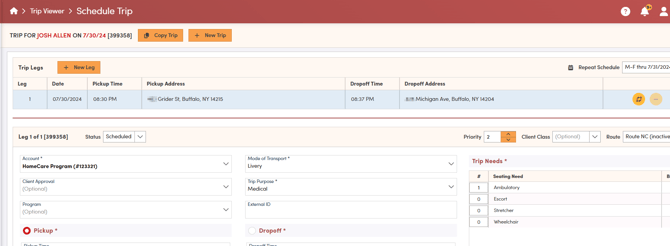
The trip will then open in screen.
From the main menu on the left, open the Dispatching dropdown and choose “Dispatch” to access the Dispatch screen.
On the Dispatch screen, searching for trips is straightforward. Simply select the date that you would like to search and enter the Client Name into the Search in Results field to display trips associated with that Client on that day.

You can further refine your search by adjusting Filter Trips options such as Date and Trip Status. After selecting the appropriate filters, click the Filter button to update the list and view only the trips that match your criteria. By applying these filters, the Dispatch screen will display only the trips that match your selected criteria.
When you search by name, the system looks for the value you enter in both client names (first and last) and addresses, returning any records that match.
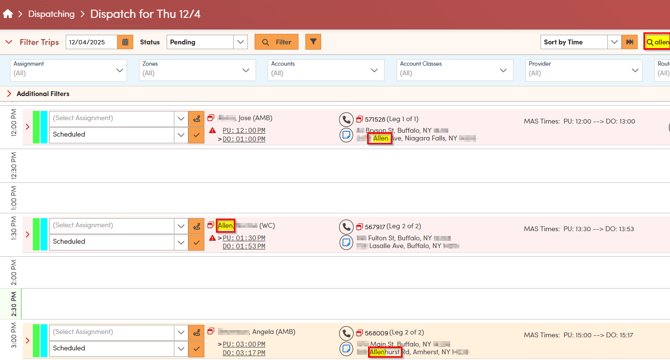
NOTE: To accurately identify the intended client, always verify additional details such as phone number, class, or client ID beyond just the name. This practice helps ensure you are selecting the correct client record.
After you have located the trip you need, select the icon with two red boxes next to the telephone icon to open and review the trip details.
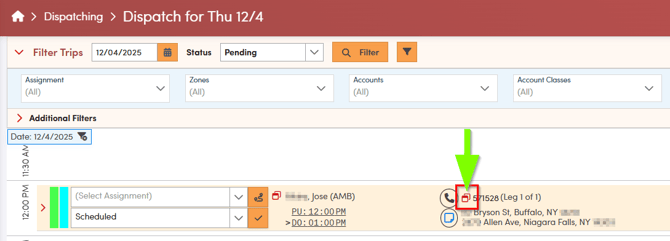
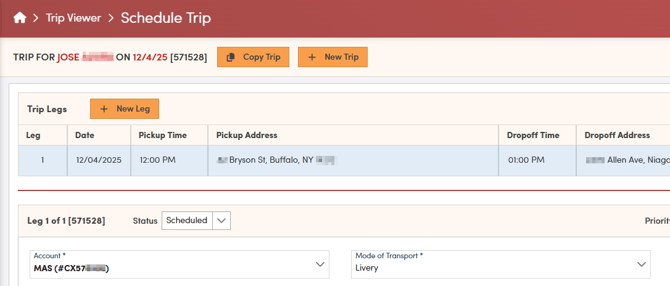
The trip will then open in screen.
Method 3 - Search by Trip ID
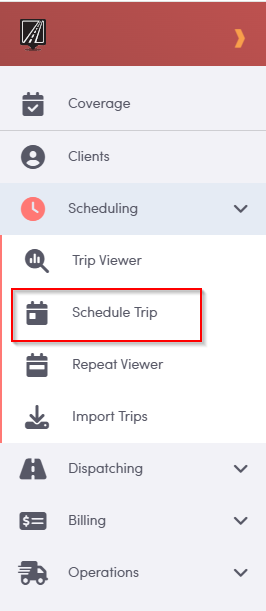
To begin, locate the Scheduling menu on the left-hand side of your screen and click on “Schedule Trip.”
In the Schedule Trip window, you’ll see options to search for an existing trip by entering either the Trip ID or the External ID.
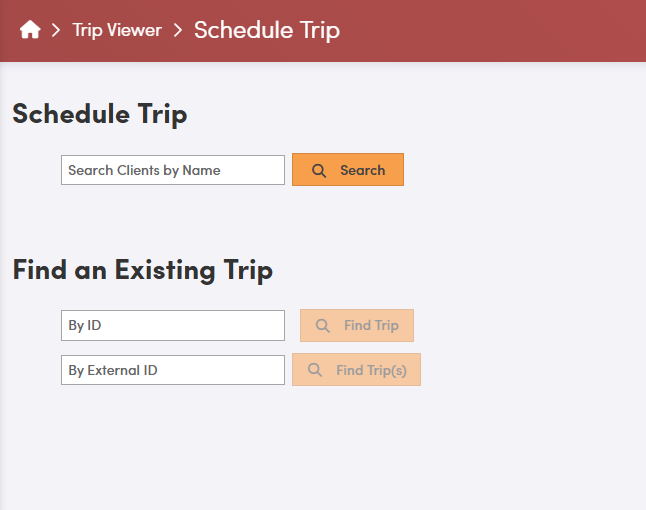
After entering the trip ID, click the Find Trip button next to the search bar to retrieve the trip details.