![New Founders Software-White.png]](https://help.intelligentbits.com/hs-fs/hubfs/New%20Founders%20Software-White.png?height=50&name=New%20Founders%20Software-White.png)
A stripe account is needed in order to use the add on in RoutingBox. To sign up: https://dashboard.stripe.com/register. Once registered, contact support to begin configuration.
After setup:
-
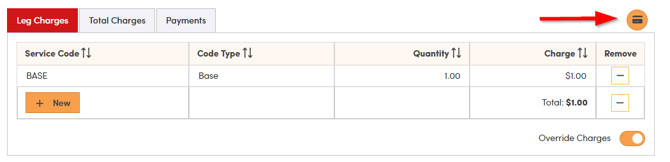
To begin, open the trip record you want to work with. Next, click the credit card icon to explore and manage available payment options.
-
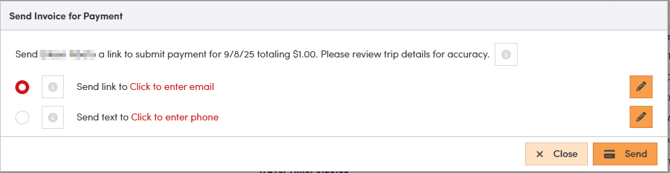
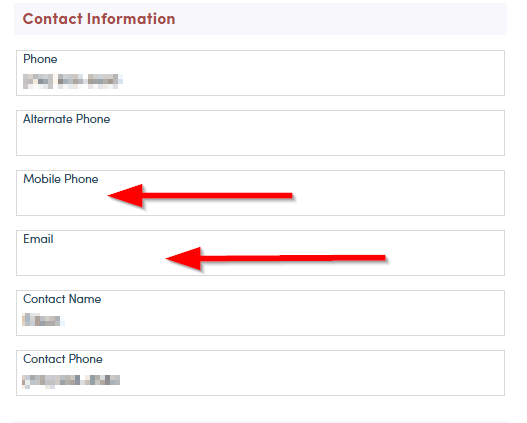
To send the invoice or payment link, choose whether you would like it delivered to the client’s email address or mobile phone number, then click Send. It’s important to ensure the client’s record includes either an email address, a mobile phone number, or both. If this information is missing from the client profile, select “Click to enter email/mobile phone number” to add the appropriate contact details—doing so will update the client’s record. When an email address or mobile number is already available, these fields will automatically populate, streamlining the process.
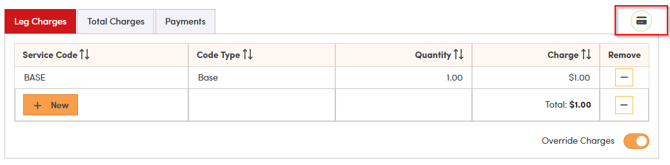
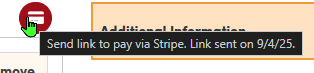
- Once the invoice or payment link has been sent, you’ll notice that the Credit Card icon changes to green. This color change serves as a visual indicator that the invoice was delivered, regardless of whether the payment has been completed. To view when the link was sent, simply hover your cursor over the Credit Card icon; a timestamp will appear with this information. If you ever need to resend the invoice, just click the Credit Card icon again and repeat the original steps—this makes it easy to manage communication and ensure clients have the necessary payment details.
If an invoice has already been paid and you choose to resend it—either by email or text—the invoice will appear as unpaid to the recipient. This means the full invoice amount will be visible, and the client will have the option to submit another payment.
-
If the invoice is sent by email, The 'Reply To' email is from “Email” field on Company record (not Invoice email).
- The email invoice to clients will have a link to your company's stripe payment portal. You can make use of the company logo option by providing a small logo for the invoice.
- The client, once the invoice is paid will be given a payment confirmation and be emailed a receipt.
Text
- The company name displayed on the invoice is determined by either the information saved in the company record or the Company Invoice name, depending on your organization’s setup.
- You can further personalize your invoices by uploading your organization’s custom logo to the company record. This graphic will appear on outgoing invoices.
- Clients can conveniently complete their payments directly from their smartphone, allowing for a secure and seamless transaction experience.
RoutingBox will allow clients to pay their invoice in full. Partial payments are not able to be accepted currently.
What happens in RoutingBox after payment is made?
-
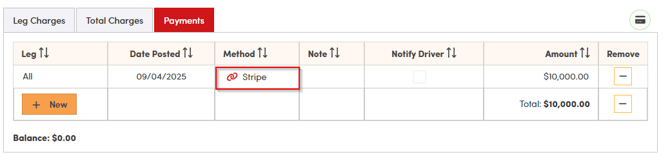
Once a payment is made, it will be recorded directly on the trip record in RoutingBox. While the example uses Stripe as the payment processor, you can customize the name to reflect any payment method you’ve set up.
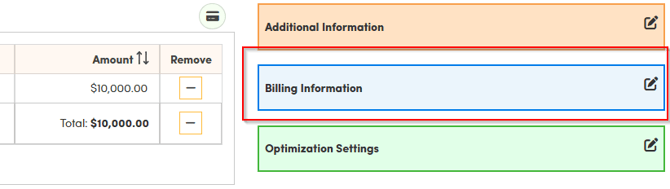
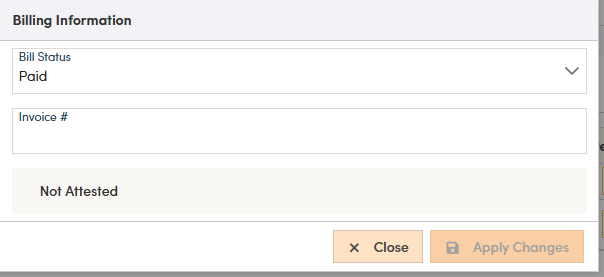
- The Billing Status will update to reflect that the invoice has been paid.
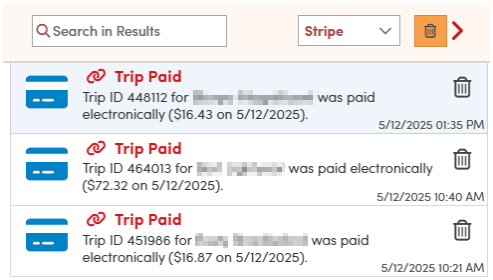
- After a payment is received and recorded, a notification will appear within RoutingBox for 48 hours to help your team easily track recent payment activity.
To set payment methods:
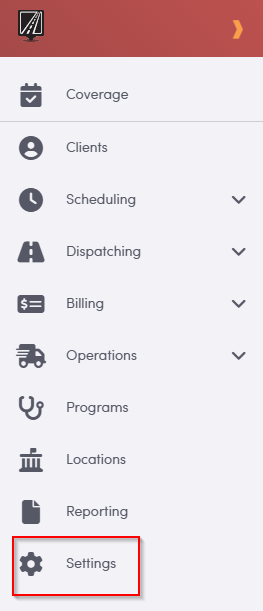
- Navigate to settings
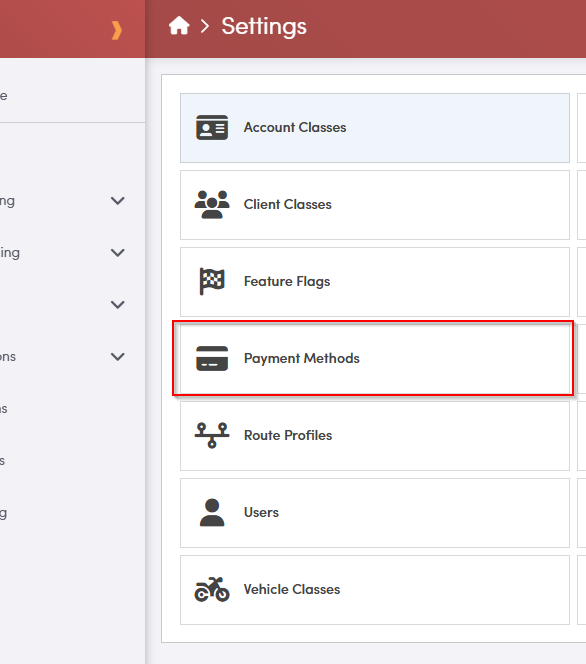
- Select Payment Methods
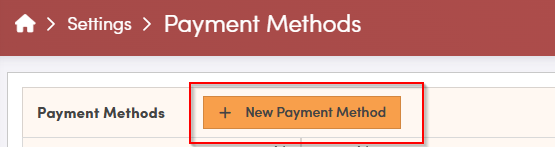
- Select +New Payment Method
- A new window will appear, prompting you to enter a name for the payment type. The Description field is optional and can be used to provide additional details if needed.
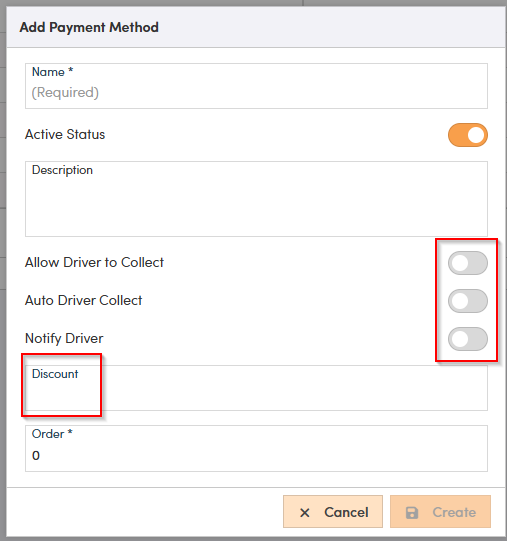
At this time, the driver and discount toggles are inactive within RoutingBox. These fields are visible but not currently functional, so you will not need to adjust them when configuring payment methods.
Stripe currently supports two payment types: card payments (credit or debit cards) and bank account payments known as ACH. ACH is used for payments that would otherwise be made by check.
Before you can use the integration, it’s necessary to set up at least one payment method within RoutingBox. This process enables the system to process transactions securely, whether you plan to accept credit card payments, ACH transfers, or both. By configuring payment methods in advance, you help ensure that all billing and payment workflows function smoothly for your clients.