![New Founders Software-White.png]](https://help.intelligentbits.com/hs-fs/hubfs/New%20Founders%20Software-White.png?height=50&name=New%20Founders%20Software-White.png)
RoutingBox Web only: The ability to download GPS breadcrumb data is available in RoutingBox Web only. RoutingBox Web can be accessed by going to app.routingbox.com.
How to view and download breadcrumb data
Step 1 — Navigate to the Tracker screen
- Log in at app.routingbox.com.
- From the left-side menu, navigate to Dispatching > Tracker screen.
- Select the Audit view at the top of the screen.

Step 2 — Select the date and assignment
- Use the date selector to choose the date of the trip you need data for.
- Select by the driver or vehicle from the selectors. This will load the trip grid for that date and driver/vehicle/assignment.
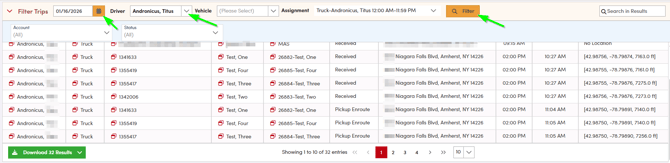
- Click on a milestone in the grid to see its corresponding location on the map. You can step through each milestone to review the full breadcrumb trail. Please refer to the Key in the top right corner on the map.

Step 3 — Download the data
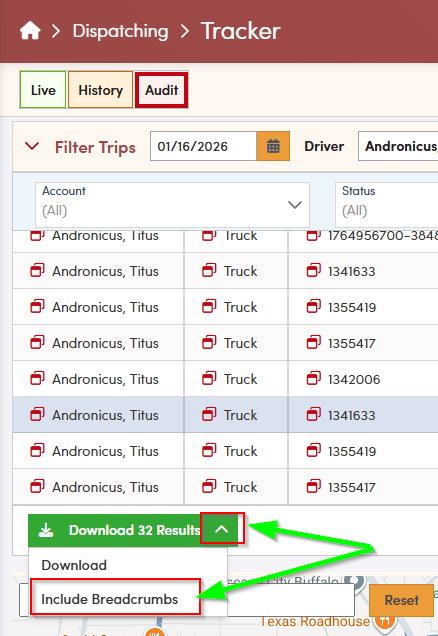
- Once you have the correct date and assignment loaded, scroll to the bottom of the trip grid.
- Click the arrow in the green Download button and select include breadcrumbs. This will export the breadcrumb data, including all milestones and their GPS coordinates, as a downloadable file.
No data showing? If the grid is empty or milestones are missing, see the section below on common reasons GPS data may be incomplete.
How breadcrumb data is typically used
Breadcrumb data is most commonly requested when a broker has denied a trip and you need to provide documentation of the driver's route and status updates as part of the broker's review process. How that data is submitted varies by broker — most require you to go through their own external portal or process to provide supporting documentation. Downloading the breadcrumb file from RoutingBox gives you the data you need to complete that process on the broker's end.
Keep in mind that providing breadcrumb data does not guarantee a denial will be reversed. It is one input into the broker's review, and the outcome depends on the broker's own policies and findings.
Common reasons GPS data may be missing or incomplete
If a trip has no breadcrumb data, or the data is partial, it means the GPS was not fully captured during the trip. There is no way to recover GPS data that was not recorded. Common causes include:
- The driver did not use the RoutingBox Mobile app to complete the trip
- Location permissions on the driver's device were not set to 'Always On'
- The driver missed one or more status updates — each milestone must be triggered in the app for GPS to be tied to it
Partial GPS data: If GPS data exists but is incomplete, there is nothing further that can be done from within RoutingBox — the data that was not captured at the time of the trip does not exist. In this case, contact the broker directly to understand your options for their review process.
Need help?
If you've pulled the breadcrumb data and have questions about what you're seeing, or if you're running into an issue with the Tracker Audit screen, reach out to our support team via live chat. Please have the following ready:
- The trip date and driver name
- The broker the trip was submitted to
- A description of what you're seeing — or not seeing — in the Tracker Audit view