![New Founders Software-White.png]](https://help.intelligentbits.com/hs-fs/hubfs/New%20Founders%20Software-White.png?height=50&name=New%20Founders%20Software-White.png)
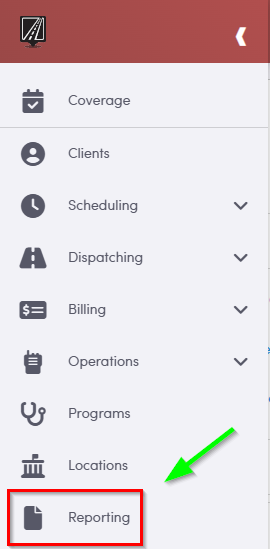
Navigate to the Reporting tab, then select Accounting.
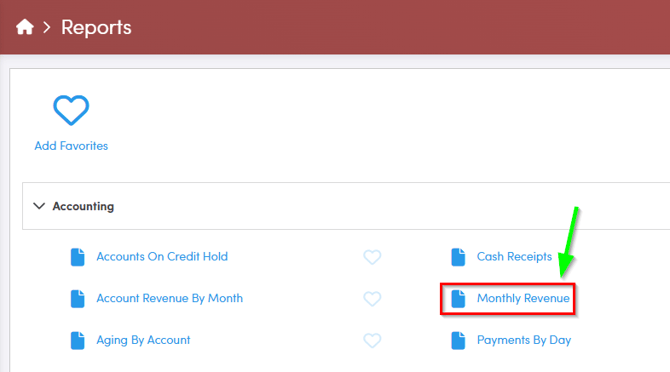
1. Double-click Monthly Revenue.
2. Click the calendar icon to select the beginning and end date.
3. Double-click the Client Class(es) you would like to view.
4. Click OK to generate the report.
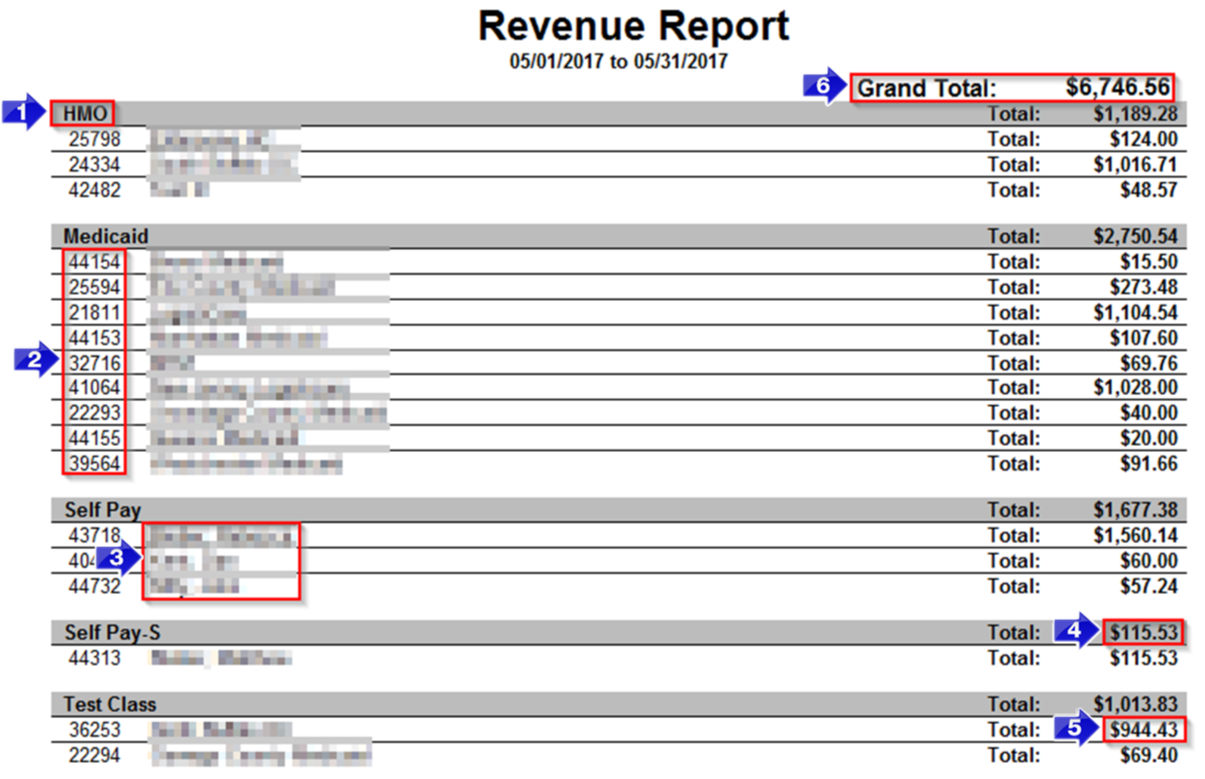
1. Indicates the Account Class.
2. Indicates the Account ID.
3. Displays the Account Name.
4. Displays the Total revenue for the Account Class.
5. Displays the Total revenue for the Account.
6. Displays the Grand Total of Revenue.