![New Founders Software-White.png]](https://help.intelligentbits.com/hs-fs/hubfs/New%20Founders%20Software-White.png?height=50&name=New%20Founders%20Software-White.png)
Navigate to the Reporting tab, then select Billing.
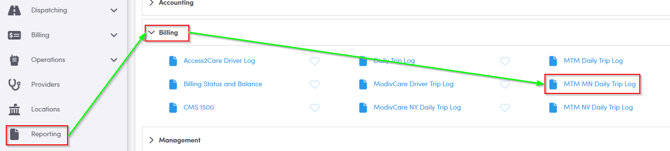
Double-click MTM MN Daily Trip Log.
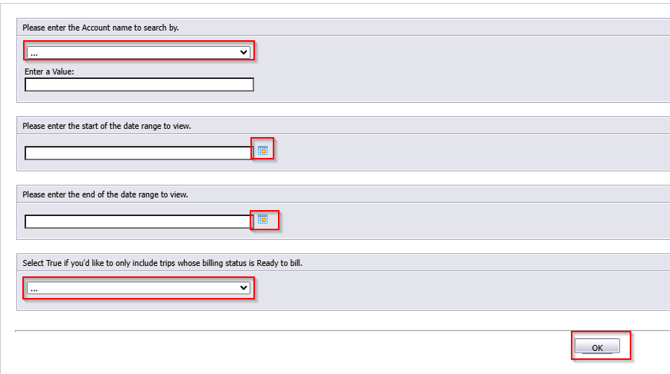
Select the Account you would like to run the report for.
Click the calendar icon to select the beginning date.
Click the calendar icon to select the end date.
Select True if you would only like to view trips with a billing status of ready. By default, False is selected and trips with all billing statuses will populate on the report.
Click OK to generate the report.
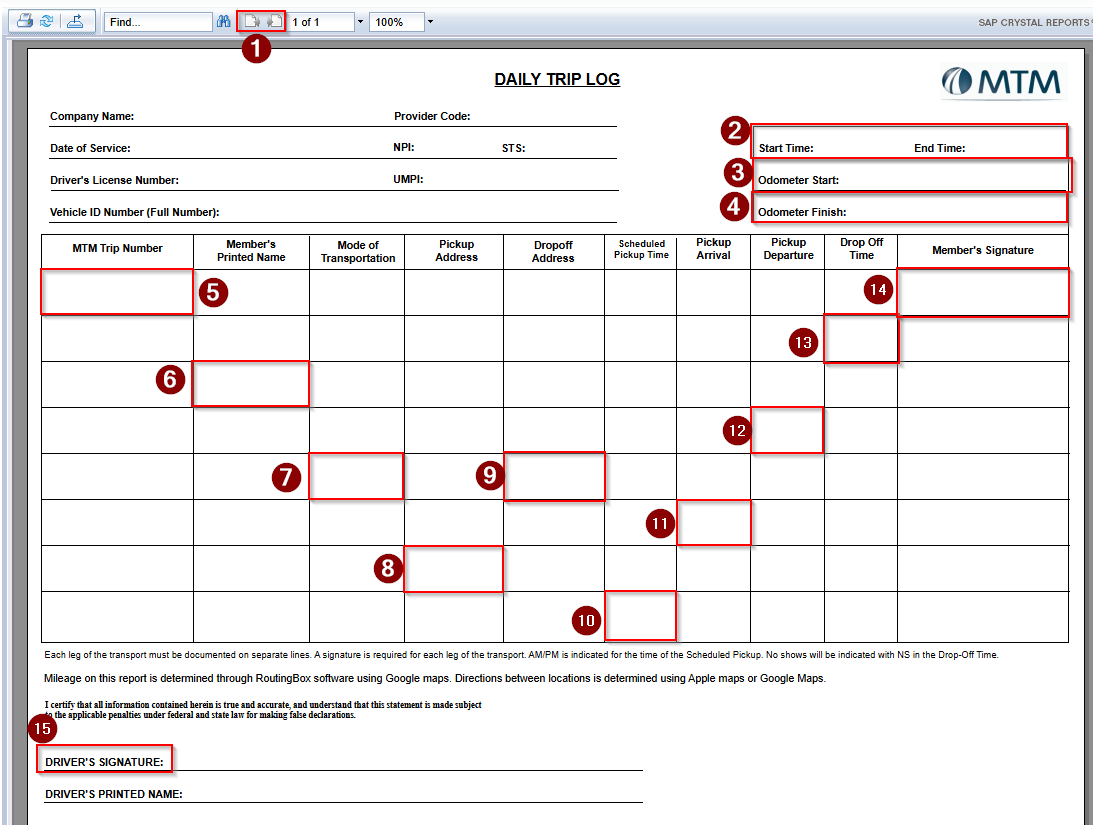
- Use these buttons to toggle between pages.
- The Start Time and End Time of the driver’s shift will appear here.
- If your driver entered their odometer reading in the pre-checklist using RoutingBox Mobile, it will be displayed here.
- If your driver entered their odometer reading in the post-checklist using RoutingBox Mobile, it will be displayed here.
- The MTM trip ID will be displayed in the MTM Trip Number column.
- The name of the client will be displayed in the Member’s Printed Name column.
- The Mode of Transport ie Ambulatory, wheelchair ect will be displayed in the Mode of Transportation column.
- The Pickup Address will be displayed in this column.
- The Dropoff Address will be displayed in this column.
- The Scheduled Pickup Time will be displayed in this column.
- If your driver updated their trip status using RoutingBox Mobile, the actual Pickup Arrival time will be displayed in this column.
- If your driver updated their trip status using RoutingBox Mobile, the actual Pickup Departure time will be displayed in this column.
- If your driver updated their trip status using RoutingBox Mobile, the actual Drop Off Time will be displayed in this column.
- If your driver collected the client’s signature using RoutingBox Mobile, it will populate the Member’s Signature column.
- If your driver signed the pre-checklist using RoutingBox Mobile, it will populate in the Driver’s Signature field.