![New Founders Software-White.png]](https://help.intelligentbits.com/hs-fs/hubfs/New%20Founders%20Software-White.png?height=50&name=New%20Founders%20Software-White.png)
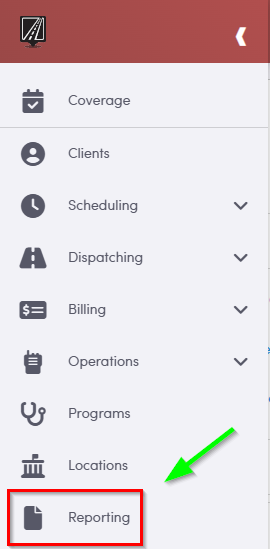
To access the Payments By Day report, navigate to the Reporting tab, then select Accounting.
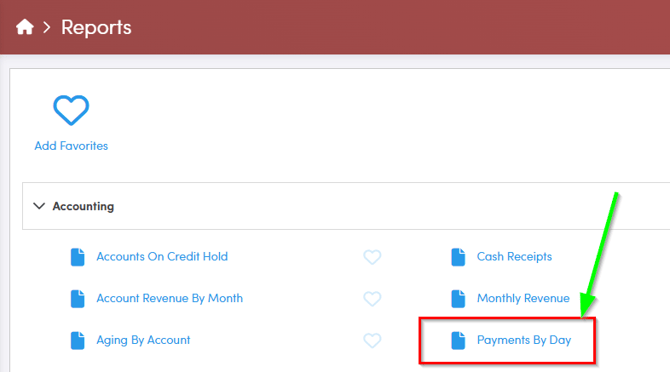
1. Double-click Payments By Day.
2. Click the calendar icon to select the date you would like to view.
3. Select True if you would only like to view payments collected by the driver. Select False if you would like to view all payments.
4. Click OK to generate the report.
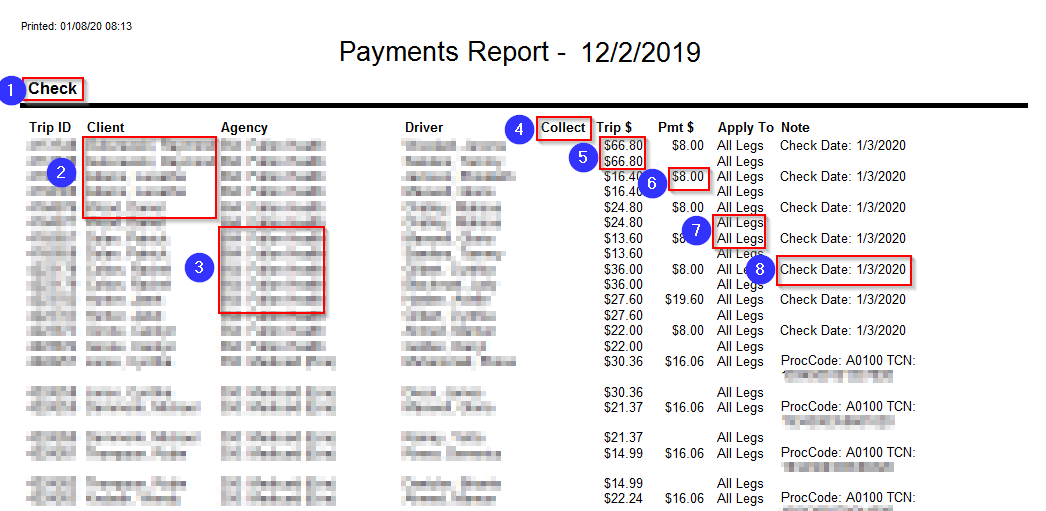
1. Displays the Method of Payment
2. The Client name is displayed in this column.
3. The Account ID and Account Name is displayed in the Agency column.
4. The Collect column shows what legs, if any, had payments collected by a driver.
5. The total trip cost is displayed in the Trip $ column.
6. Any payments applied to the trip will be displayed in the Pmt $ column.
7. The Apply To column will display the leg number.
8. The Note column will display a Payment Date and Ref Num if it was posted in the Post Payments screen, or state MedBatch Payment if the payment was received in MedBatch. This column will also display any miscellaneous notes applied in the Payments window.