![New Founders Software-White.png]](https://help.intelligentbits.com/hs-fs/hubfs/New%20Founders%20Software-White.png?height=50&name=New%20Founders%20Software-White.png)
Navigate to the Reporting menu, then select the Billing.
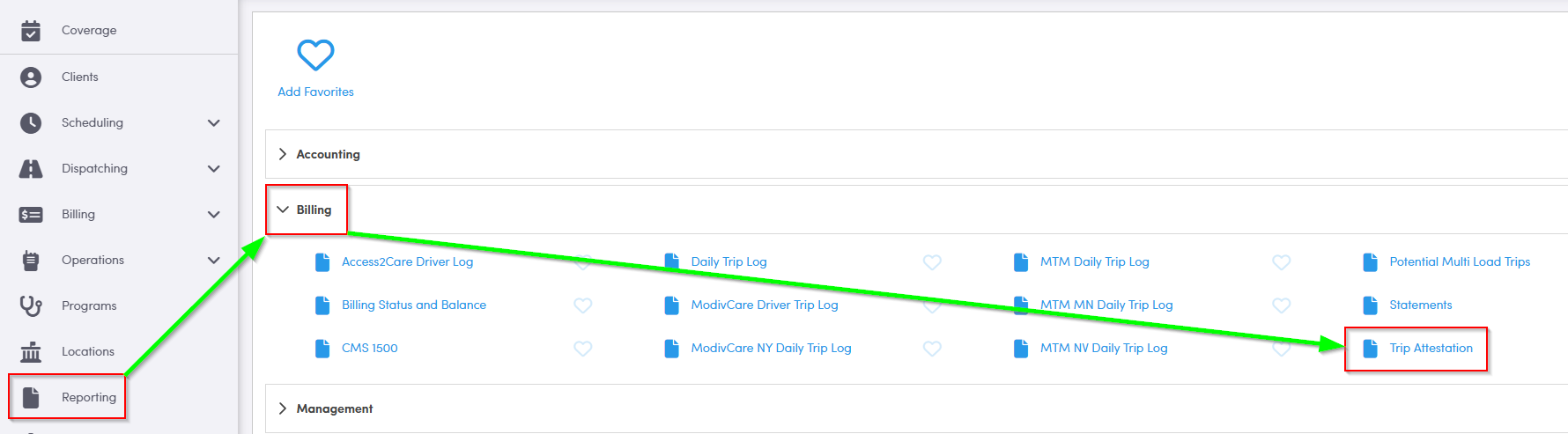
1. Double-click Trip Attestation.
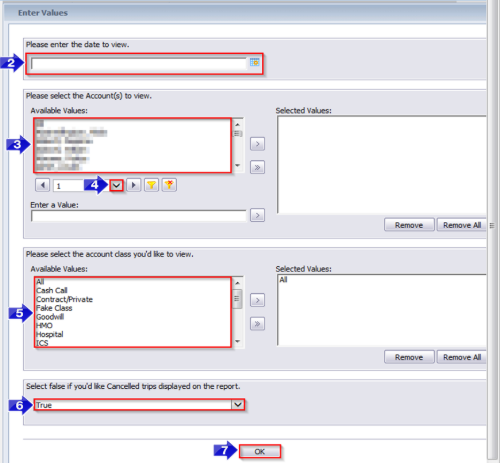
2. Click the calendar icon to select the date you would like to view.
3. Double-click the Account(s) you would like to view.
4. If the account isn’t visible, click the drop-down to view more options.
5. Double-click the Account Class(es) you would like to view.
6. Select False if you’d like to display cancelled trips.
7. Click OK to generate the report.
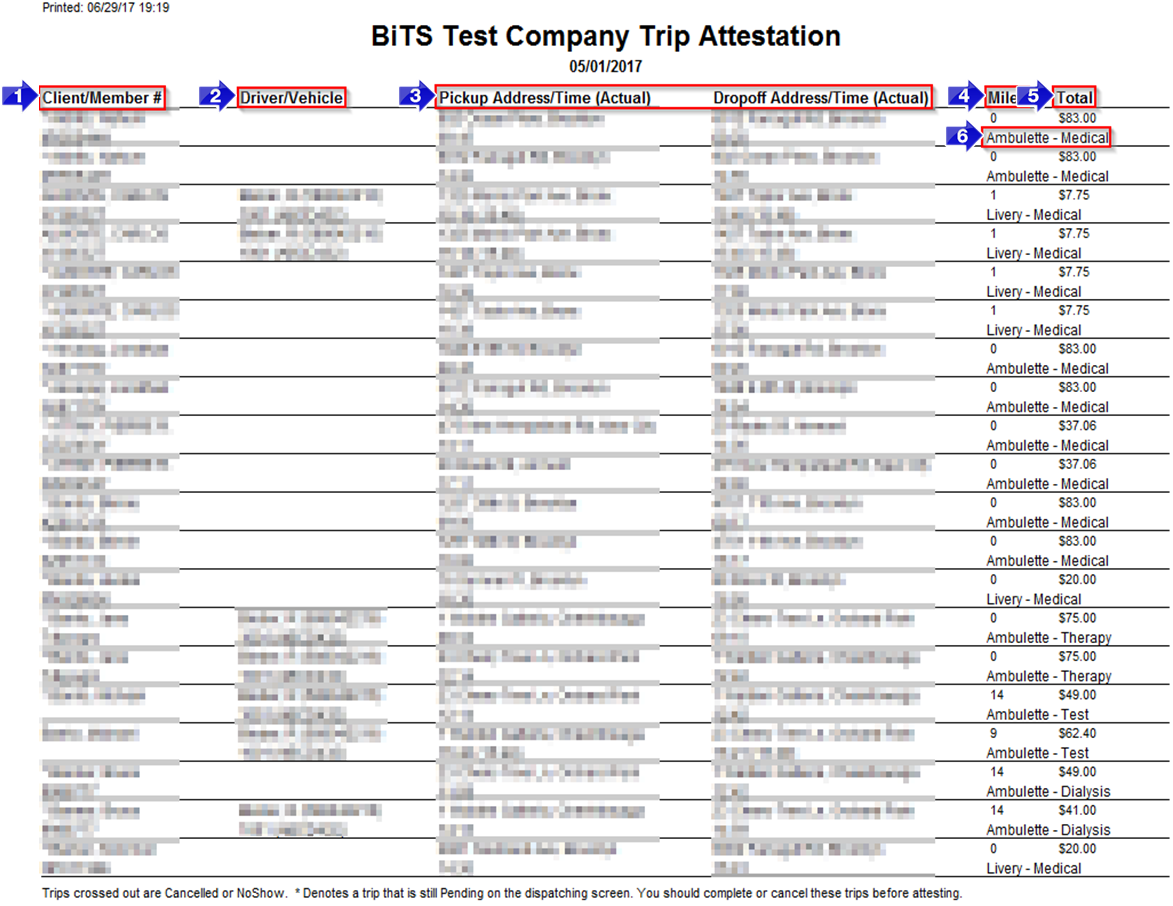
1. The Client/Member # will be displayed in this column.
2. The Driver/Vehicle column displays license and plate number.
3. The Pickup Address/Time (Actual) and the Dropoff Address/Time (Actual) are displayed in these columns. If your driver updated their status using RoutingBox Mobile, the actual time will be displayed in parenthesis next to the scheduled time.
4. The Miles will be rounded to the closest whole number and displayed in this column.
5. The Total cost of the leg is displayed in this column.
6. The Mode and Purpose are displayed here.
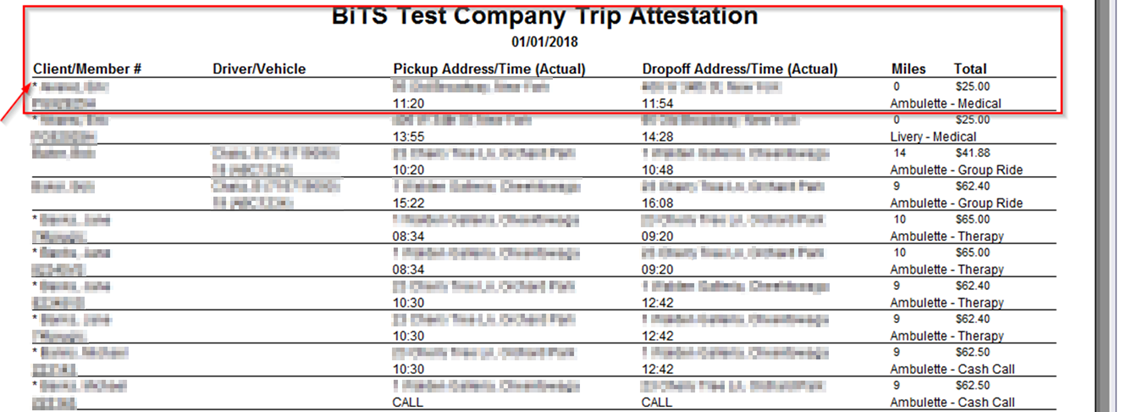
Note: If a trip has not been marked as Completed in RoutingBox, an asterisk will precede the Client Name. These trips should be updated to the correct status before attesting.
Key Terms: Address, Attest, Attesting, Billing, Completed, Driver, Rates, Report, ReportingFormHelp