![New Founders Software-White.png]](https://help.intelligentbits.com/hs-fs/hubfs/New%20Founders%20Software-White.png?height=50&name=New%20Founders%20Software-White.png)
Before troubleshooting: Trip statuses are primarily updated by drivers through the RoutingBox Mobile app in real time. Most status issues trace back to a driver missing, skipping, or mis-timing a status update during the trip. Always consider driver app behavior as the first variable when a status doesn't look right.
How to manually change a trip status
Dispatchers can manually update a trip status directly from the Dispatch screen in both RoutingBox Web and Desktop. This is useful when a driver is unavailable, has already completed a trip, or when a status needs to be corrected after the fact.
RoutingBox Web
- Navigate to the Dispatch screen.
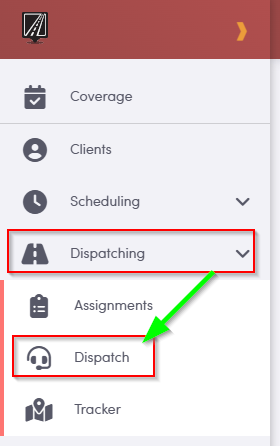
- Locate the trip in the dispatch grid.
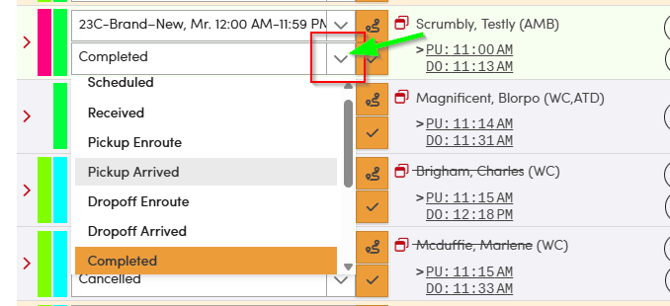
- Find the Status column for that trip. Click the status field to open the status selector.
- Select the appropriate status from the list.
RoutingBox Desktop
- Navigate to the Dispatch screen.
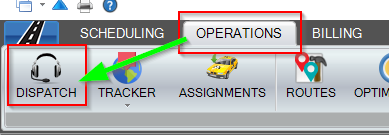
- Locate the trip in the dispatch grid.
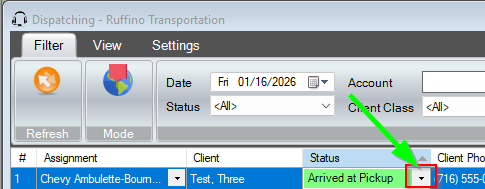
- Find the Status column for that trip. Click the status field to open the status selector.
- Select the appropriate status from the list.
Important — GPS breadcrumbs: When a dispatcher manually updates a trip status, GPS breadcrumb data is not captured for that status change. The update will be recorded in RoutingBox, but no GPS coordinate will be tied to it. This is relevant if the trip is subject to broker GPS requirements. If GPS documentation may be needed, be aware that manually set statuses will not appear in breadcrumb data.
Trip stuck in the wrong status
If a trip is showing a status it should not be in — for example, still showing as En Route after the driver has returned, or stuck at Arrived at Pickup when the trip was completed — this is most commonly caused by the driver not updating their milestones in the app at the correct time.
If the driver is still available, have them update the status correctly through the app. If the driver is no longer available or has already logged out, a dispatcher can manually correct the status from the Dispatch screen using the steps above.
Keep in mind: Manually correcting a status will not capture GPS for that update. If the trip is a MAS trip or subject to other broker GPS requirements, contact your broker directly if you have concerns about the impact on that trip
Status not updating after driver action
If a driver has tapped a milestone in the app but the status is not reflecting in RoutingBox, there are a few things to check:
- Confirm the driver's device has an active internet connection — status updates require connectivity to sync
- Confirm location permissions on the driver's device are set to 'Always On' — without this, status updates may not register correctly
- Ask the driver to check whether a warning banner appeared at the top of their app screen, which would indicate a GPS or connectivity issue at the time of the update
- If the status still has not updated after a few minutes, a dispatcher can manually set the correct status from the Dispatch screen
Completed trips reappearing in the active queue
If a trip that was marked complete is reappearing in the active dispatch queue, start with two quick checks:
- Refresh the Dispatch screen — a page or screen refresh will resolve a display issue if that is what is causing it
- Confirm the trip status in the status field directly — if it still shows as Completed, the trip may be appearing due to a view filter or sort setting rather than a genuine status change
If neither check explains it and the trip is genuinely showing an active status it should not be in, reach out to our support team via live chat. This is not a common occurrence and typically requires investigation to determine the cause.
Trip showing as complete when it shouldn't be
If a trip has been marked complete prematurely — either by the driver tapping through milestones too quickly or by an accidental dispatcher update — a dispatcher can correct the status from the Dispatch screen. Select the appropriate status to move the trip back to where it should be in the workflow.
Once a trip is in a Completed, Cancelled, or No-Show status, the driver can no longer update it from the app. Only a dispatcher can make changes at that point.
Broker impact: If a trip is completed prematurely, the timestamps recorded for those milestones may affect whether the trip is accepted by your broker. Brokers review milestone timing as part of trip verification, and timestamps that don't reflect the actual trip may result in a denial. If you have concerns about a specific trip, contact your broker directly.